AI executes what you write, not what you imagine. These tips help you use Custom Description so results match what you have in mind.
You wrote what you wanted. The AI generated something else. Or something similar, but not exactly that.
If this happened to you, it's not a problem with the tool. It's that AI doesn't interpret — it executes. And what it executes is literally what you write, not what you imagine.
TiendaPop is an AI-powered image, ad, and video generation platform integrated with Tiendanube and Nuvemshop. Inside each generation style there's a field called Custom Description: a space to give the AI an extra instruction, beyond the style you chose. Using it well makes the difference between a generic result and one that looks like what you had in mind.

These are the tips that have the most impact.
The natural tendency is to write everything you want in a single instruction. The problem is that the AI doesn't know what to prioritize when it receives too much information at once — and the result tends to be random or incomplete.
Take this example: "I want the table centered in a living room with 6 plates, 6 glasses, a table runner, and a family meal ready to sit down to. The drink should be bottled water. There should be no elements that don't belong to a family lunch."
That instruction has five or six different requests. The AI will try to fulfill all of them and will probably not fully fulfill any of them.
The same idea, rewritten: "Table centered in a family living room. Lunch meal served, ready to sit down."
Shorter. Clearer. Closer to the result you want.
If you have multiple requests, separating them into different generations works better than bundling them all into one. Generate, download, and in the next iteration add the missing detail.
Before spending credits on a high-quality generation, it's worth validating the idea in draft mode.
In TiendaPop you can generate at 512 resolution (draft mode) to see if the composition, context, and elements are well placed. If the result is going in the right direction, then scale up to higher resolution and quality. If not, adjust the instruction and try again — without having spent extra credits.
It's the same principle as iterating in small steps: first confirm that the path is correct, then invest in the final result.
There's a huge difference between telling the AI "make the product a bit bigger" and telling it "increase the product size by 20%".
In the first case, the AI has to infer what "a bit" means. In the second, there's no possible interpretation: it knows exactly what to do.
The same applies to instructions like "make it more natural" vs. "natural side lighting, soft shadows". Or "change the color" vs. "replace the silver color with gold".
TiendaPop users who have found this pattern write things like: "Replace silver with gold, white background png same." Or: "Reduce to 70% and move to the right." Short, objective, no room for interpretation.
When the instruction is concrete, the result is predictable. That's what you want.
The AI fills in what you don't specify. If you don't tell it not to add elements, it probably will. If you don't tell it to keep the background, it might change it.
A well-placed negative instruction eliminates that margin. Examples that work:
You don't need to write a paragraph. One line at the end of your instruction is enough to close the possibility of the AI deciding on its own in something that matters to you.
One of the lesser-known features of Custom Description is that it lets you combine multiple products from your store in a single generation.
If you have a t-shirt as your main product, you can write something like: "Combine the product (t-shirt) with the image of the shorts and the belt." The result is an image showing all three products together, within the style you chose — like a complete look ready to publish.
Tannery, a men's clothing store, used exactly this feature. They uploaded reference images of a t-shirt, shorts, and a belt separately, wrote the instruction to combine them, and TiendaPop generated an image that integrates them into a single look:
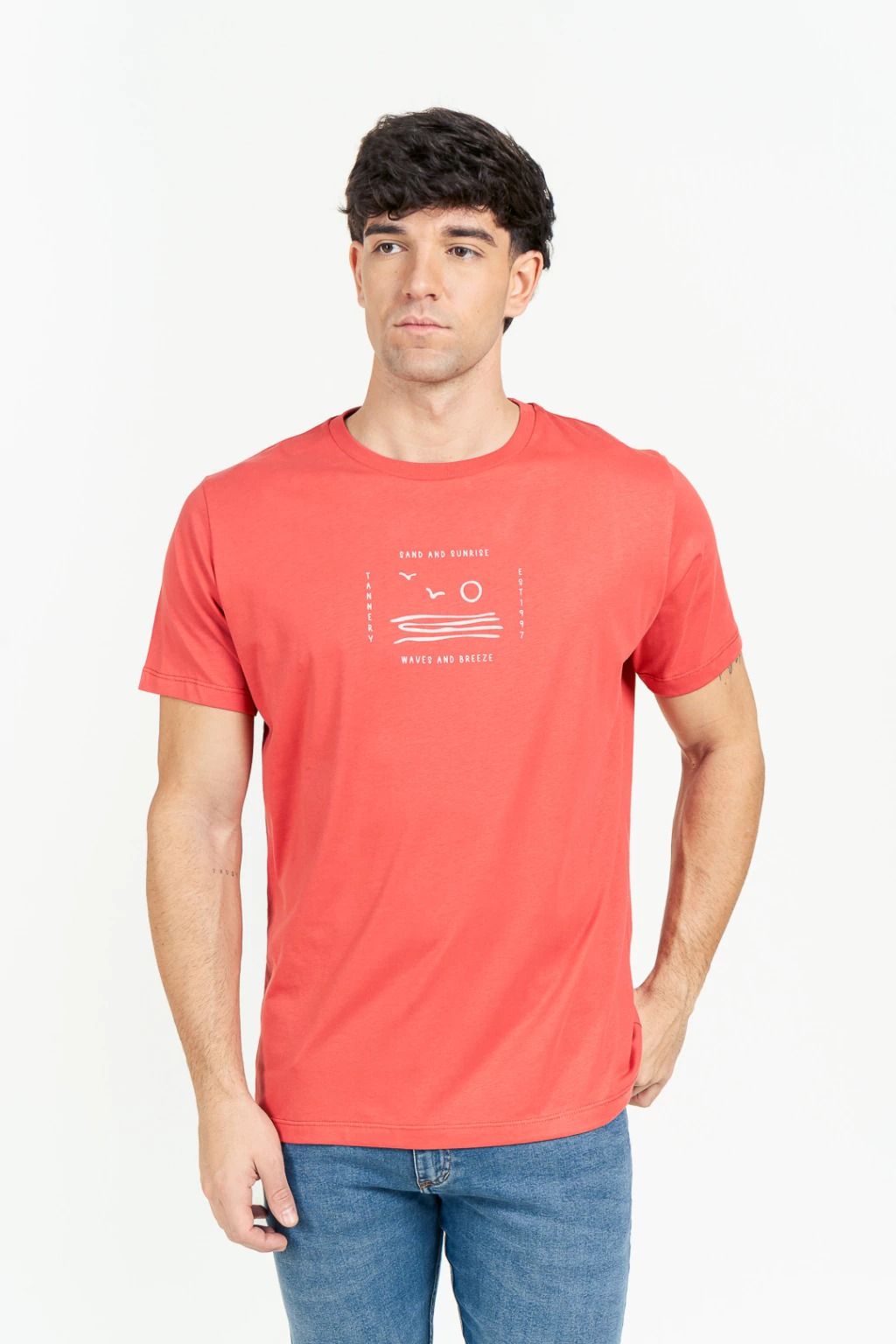


This feature is especially useful for clothing, accessories, home decor, or any category where showing products in combination helps buyers imagine how to use them together.
The path that works best is not writing the perfect instruction on the first try. It's going from less to more.
A real example: a user working on images of a tray with accessories went from "Place tray in uploaded photo" → "Reduce tray to 50%" → "Reduce tray and add small necklace resting beside it". Three generations, three steps. Each one starting from the previous result.
That's using Custom Description as it should be used: as a conversation, not as a single order that has to come out perfect.
| What doesn't work | What works |
|---|---|
| Long instruction with multiple requests | One clear request per generation |
| "Make it a bit bigger" | "Increase size by 20%" |
| "Make it nicer" | "White background, no extra elements" |
| Only describing what you want | Describing what you want AND what you don't want |
| Generating directly in high quality | Testing in draft (512) and scaling if it works |
| One generation to solve everything | Iterating in steps from the previous result |
Yes. The Custom Description field is available in Images, Ads, and Videos. In all cases it works the same way: it's an additional instruction you give the AI on top of the style you selected.
The field accepts long text, but writing more doesn't guarantee more accurate results. Quite the opposite: short, concrete instructions tend to give results closer to what you have in mind.
Draft mode generates the image at 512 resolution, which uses fewer credits. It's useful to validate that the composition and elements are going in the right direction before scaling to high quality. If the result looks good, scale up. If not, adjust the instruction and try again without having spent extra credits.
Yes. You can upload reference images of different products and ask the AI to combine them into a single image. For example: "Combine the product (t-shirt) with the image of the shorts and the belt." The result shows the products integrated within the style you chose.
Yes, and it works well when the instruction is specific. Instead of "change the color," write something like "replace the silver color with gold." The more exact, the more precise the result.
Generate again with a more focused instruction. If you asked for multiple things at once, separating them into different generations usually solves the problem. Iterating in small steps gives more predictable results than a single complex request.
No. The style is still the foundation of the generation. Custom Description adds a layer of instruction on top: it adjusts details, removes elements, modifies proportions, changes the environment, or combines products — always within the framework the style defined.
Yes. The AI understands instructions in English, Spanish, and Portuguese. Some users with AI tool experience prefer to write in English — both work equally well.
Share article:
Creating AI product images manually seems cheap, but it’s slow, inconsistent, and impossible to scale. See the real cost of using multiple AI tools vs doing it automatically with TiendaPop.