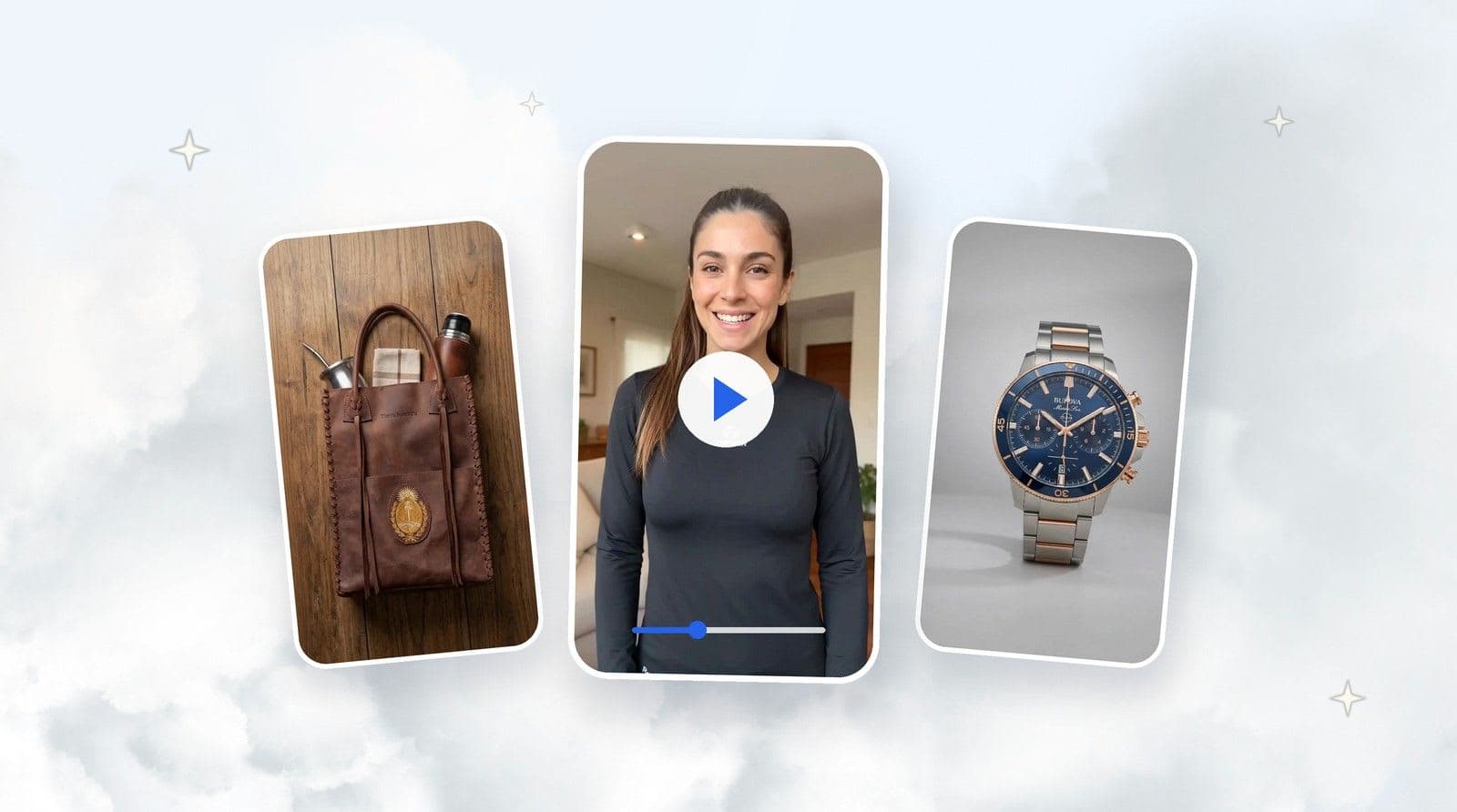
A single run now returns every style and format you need. We added five ad angles built around selling, saveable custom styles, ten new styles and a mark showing what you already uploaded to your store.
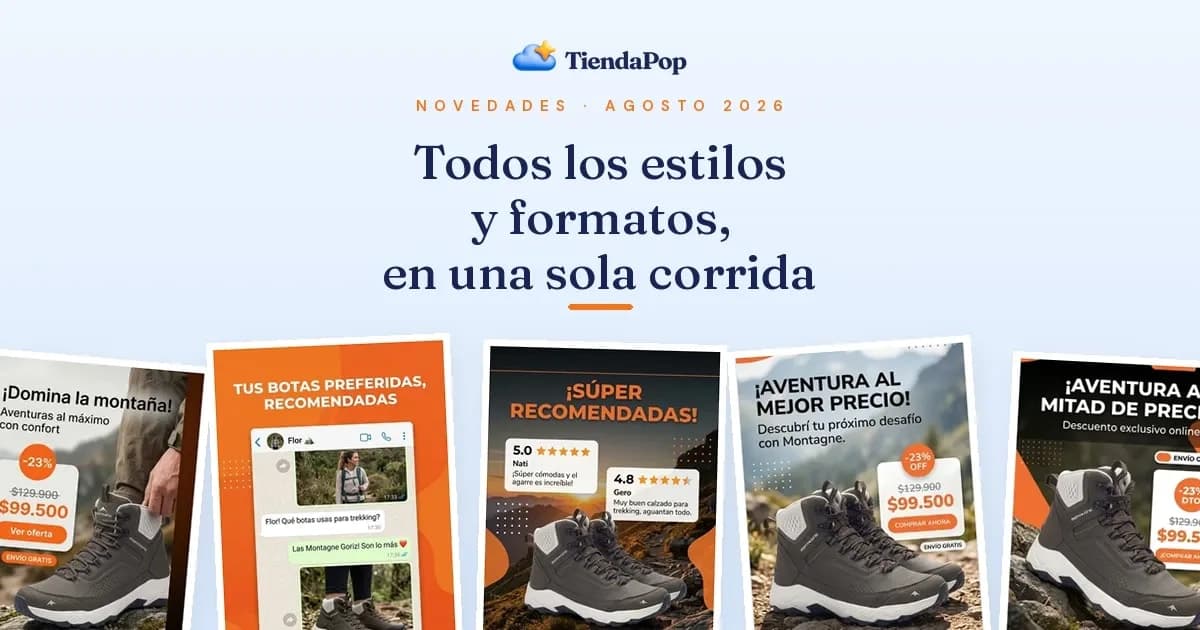
You add a new product and you need the photo for the product page, the vertical one for stories, the square one for the feed and a piece with the price for the ad. Four assets for the same product. The same work four times.
Multiply that by the products you add every month and it stops being a task and becomes a bottleneck. Most sellers solve it by doing less: one image per product, always the same format, and the selling pieces wait for a free afternoon that never comes.
Several of the improvements below came from sellers who wrote to us describing exactly that: where their time went and what slowed down their daily work. We listened and built it.
The result is that automating online store content with TiendaPop now means a single run returns every variation you need, and that ad pieces are organised by selling angle instead of by aesthetics.
TiendaPop is an AI image and content generation tool integrated with Tiendanube and Nuvemshop. It lets sellers create professional product photos, banners and ads without a photographer or a designer, straight from their store. This update adds multiple style and format generation in a single run, saveable custom styles and five ad formats built around selling.
This is the underlying change that everything else depends on.
Until now you picked one style and one size, generated, and if you wanted another version you started over. Now you can select several styles at once and several formats at once, and combine them: three styles by two formats come out together, in the same run.
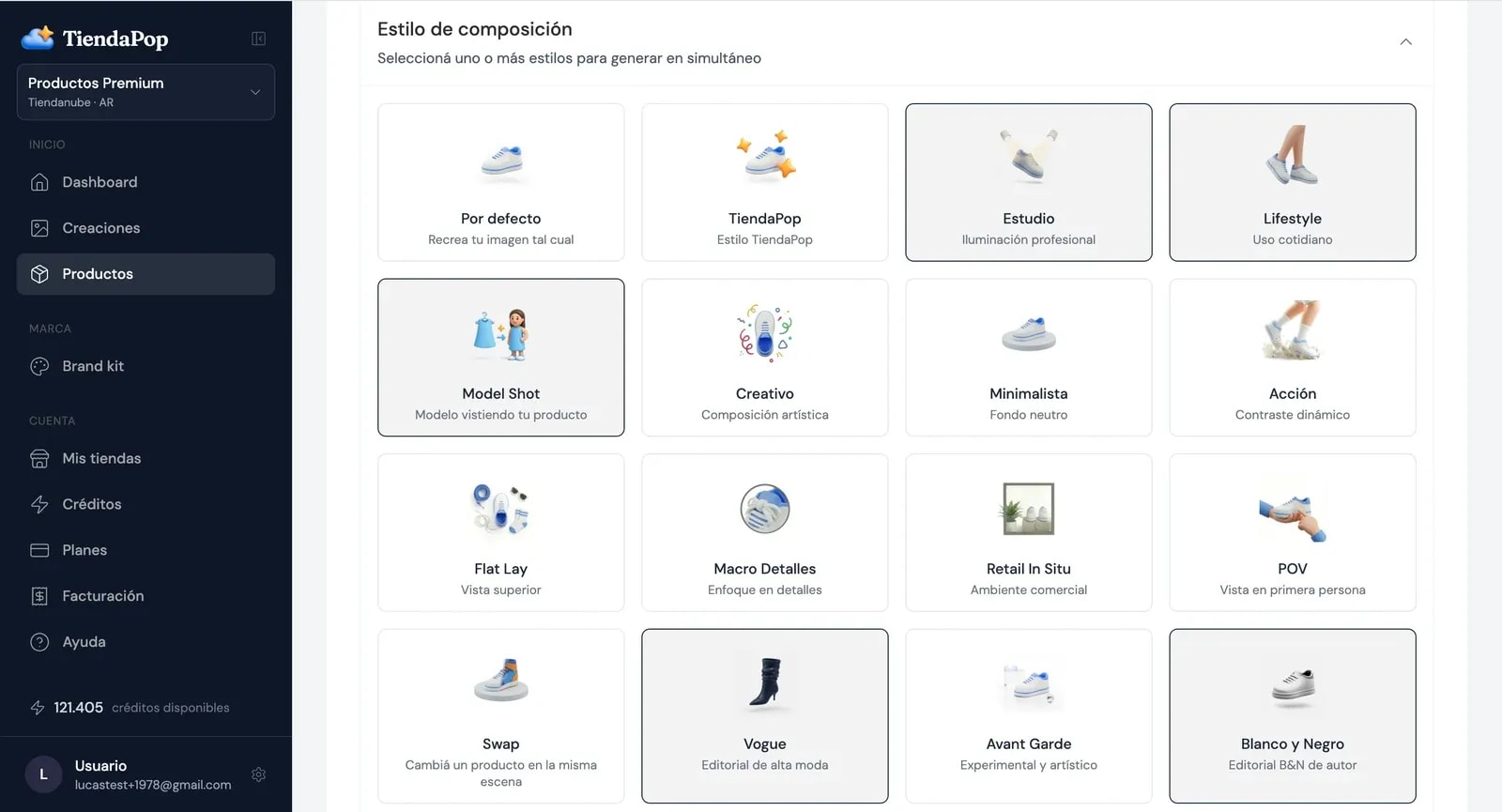
Same with formats. If you need product photos for social media in vertical and square at the same time, they come out in one go: Instagram post, vertical, Pinterest, stories, square, horizontal, widescreen.
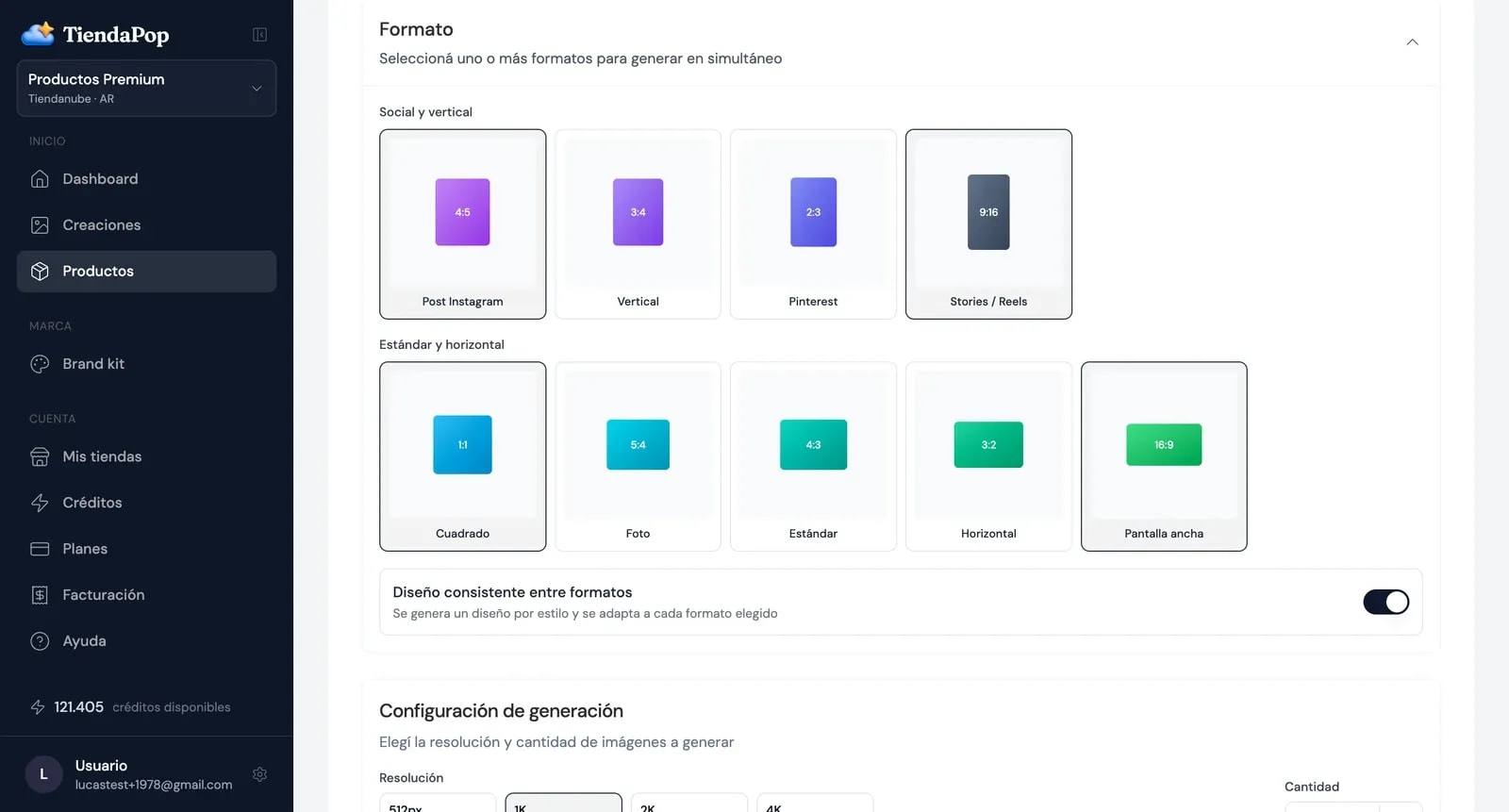
That toggle, Consistent design across formats, decides what happens when you ask for several sizes. On, one design is generated per style and adapted to each format, so the vertical piece and the square one are the same idea in two sizes. Off, each format generates its own independent image.
For a campaign where the same piece lives in several places, turn it on. To explore different options, turn it off. If you are not sure which format to use where, Tiendanube has a guide on the ideal product photography format, and we wrote about images for ecommerce: ideal formats and the new 3:4.
Generating twelve pieces at once helps little if you then have to open them one by one to see how they turned out. That is why, when the run finishes, results appear in a grid inside the product: each variation in its real proportion, the vertical one vertical and the square one square, all together.
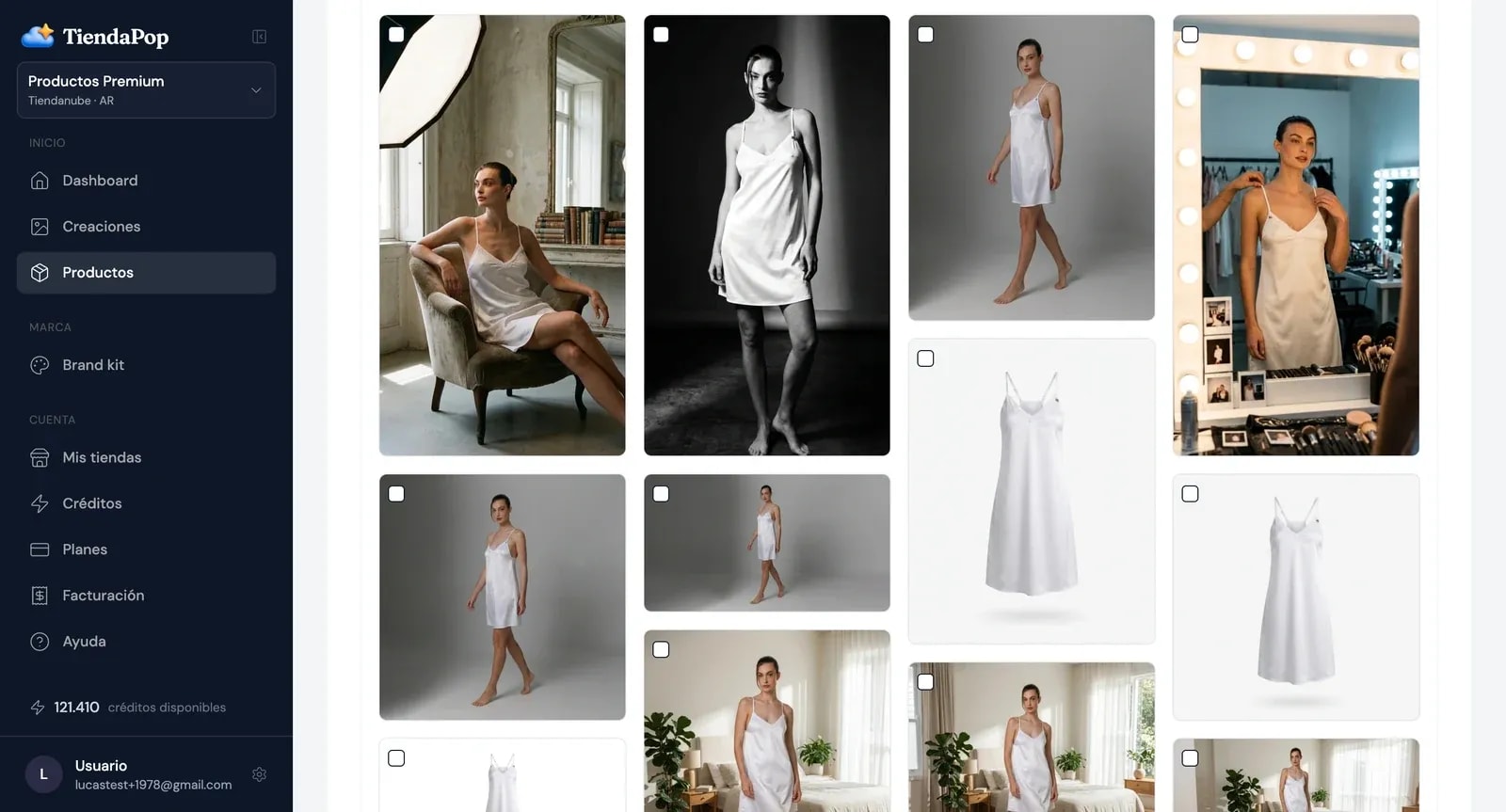
You compare at a glance which style worked best and which format serves you, instead of opening and closing each file.
And on the one you liked most, the Adapt button replaces the old Rescale: it takes that image to another format without redoing it.
This step looks optional and it is not.
When you generate a reply to comment ad, TiendaPop signs the piece with your brand name and handle next to the logo. If those fields are empty, the AI fills the gap with whatever it comes up with. Your ad goes out signed with a name that is not yours.
That is why the Brand Kit added two fields: Public name, which is how your brand introduces itself and often is not the exact name of your store, and social handle, so it shows up in the styles that use it.
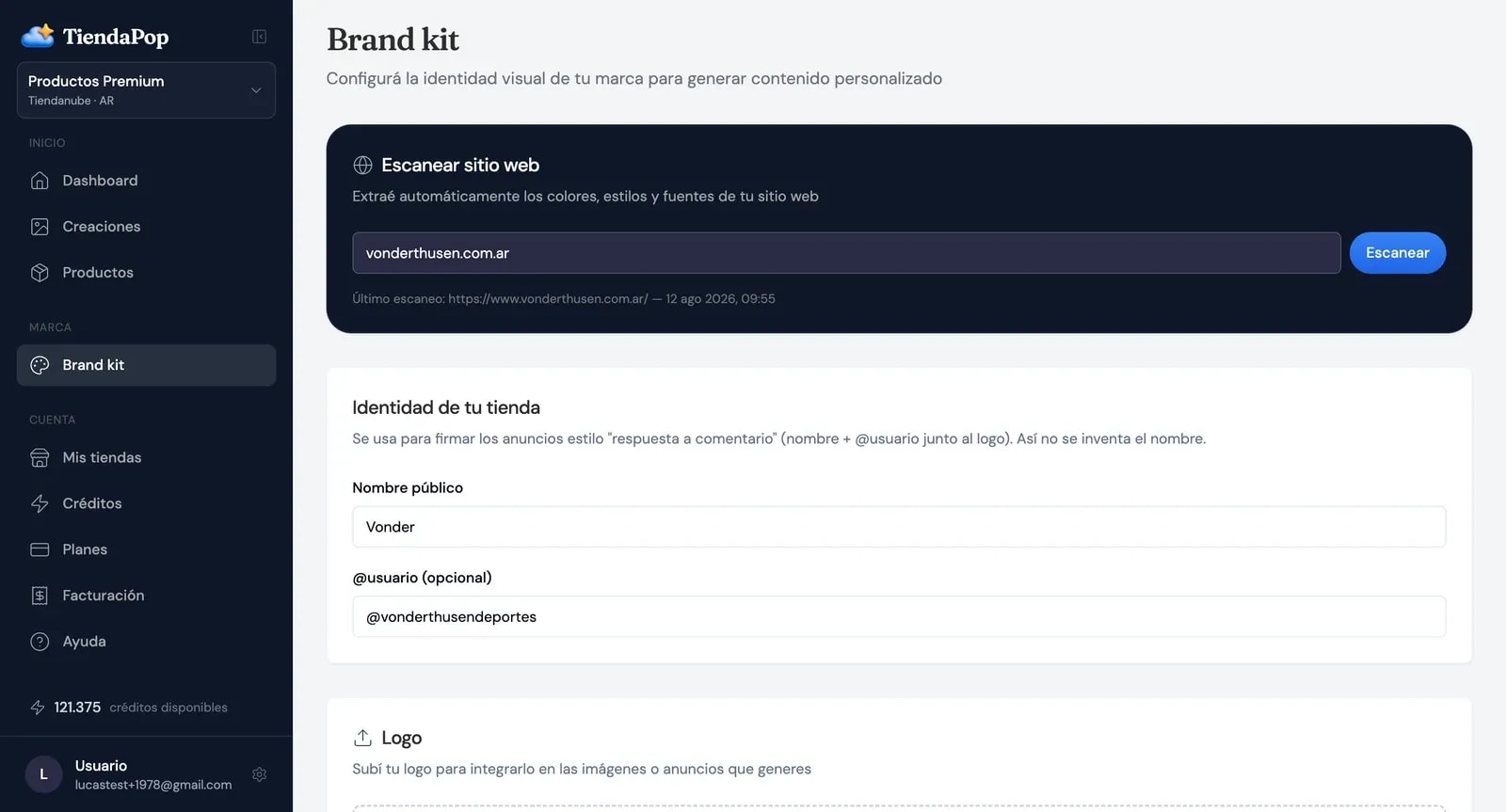
While you are there, fill in the rest: logo, colours, typefaces, visual style. Five minutes that then apply to every piece you generate, and the difference between having content and having content that looks like your brand. If you never set it up, the scanner does most of the work: you paste your store URL and it detects what it can, as we explained in Brand Kit: your brand now sets itself up.
The section formerly known as ad generation is now Ads and Social Media, and it was reorganised from the ground up. You used to pick an aesthetic. Now you pick what you want the piece to do.
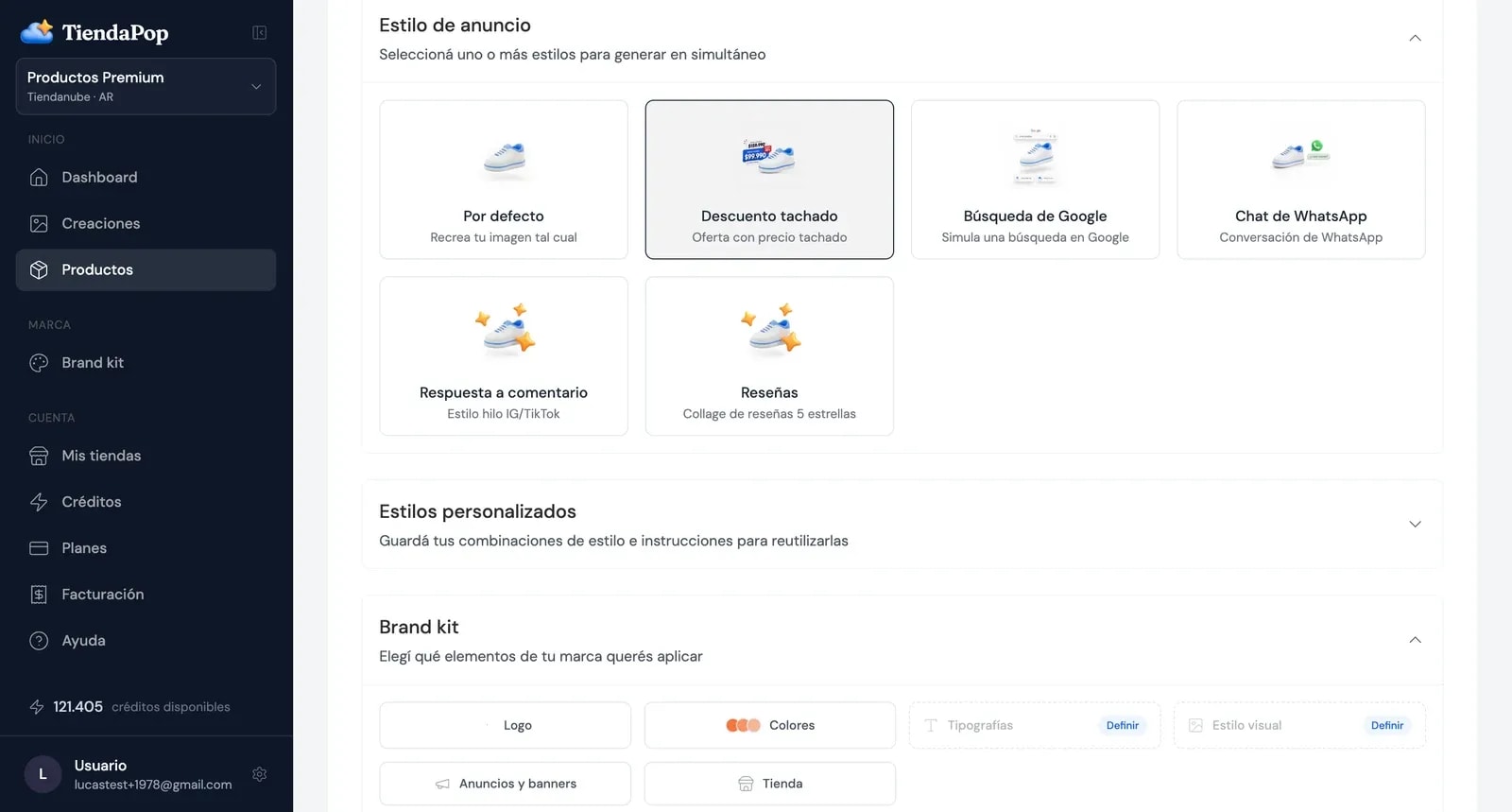
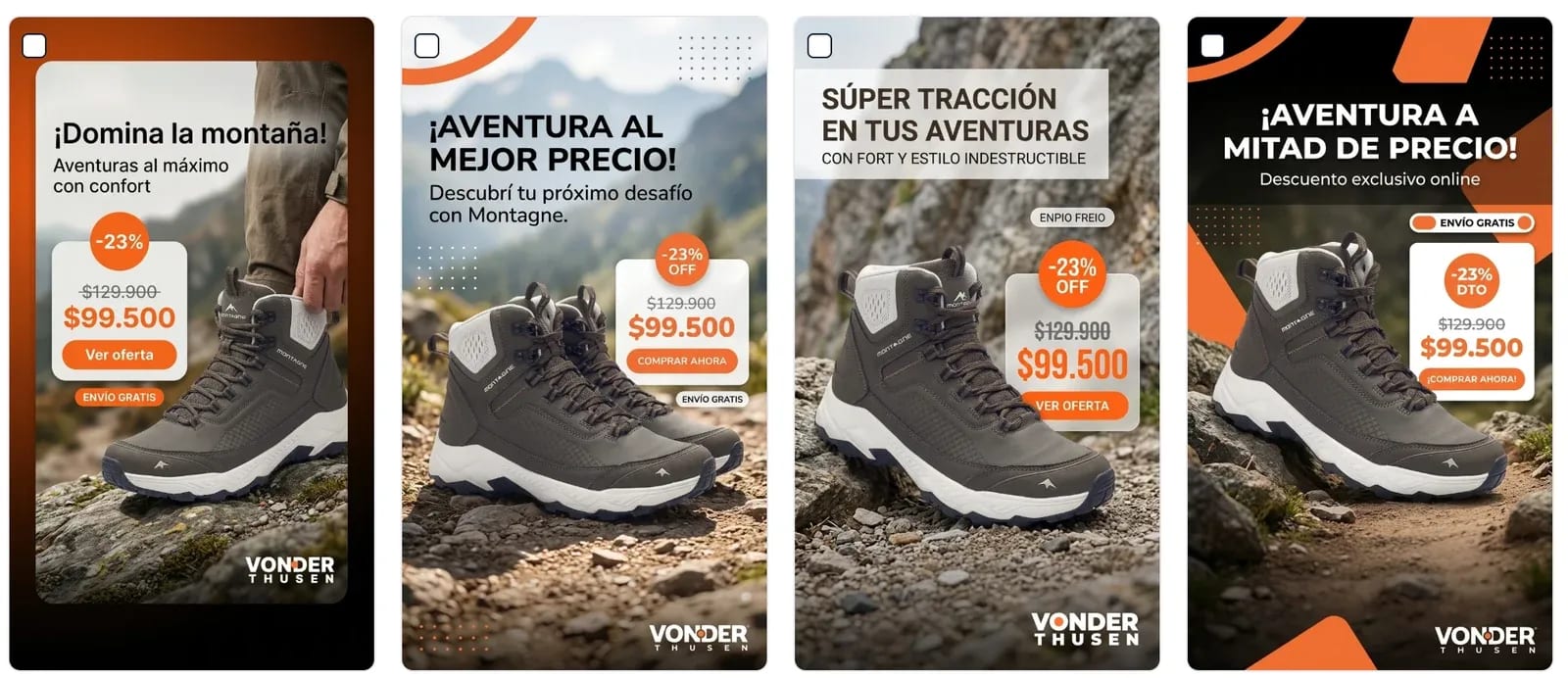
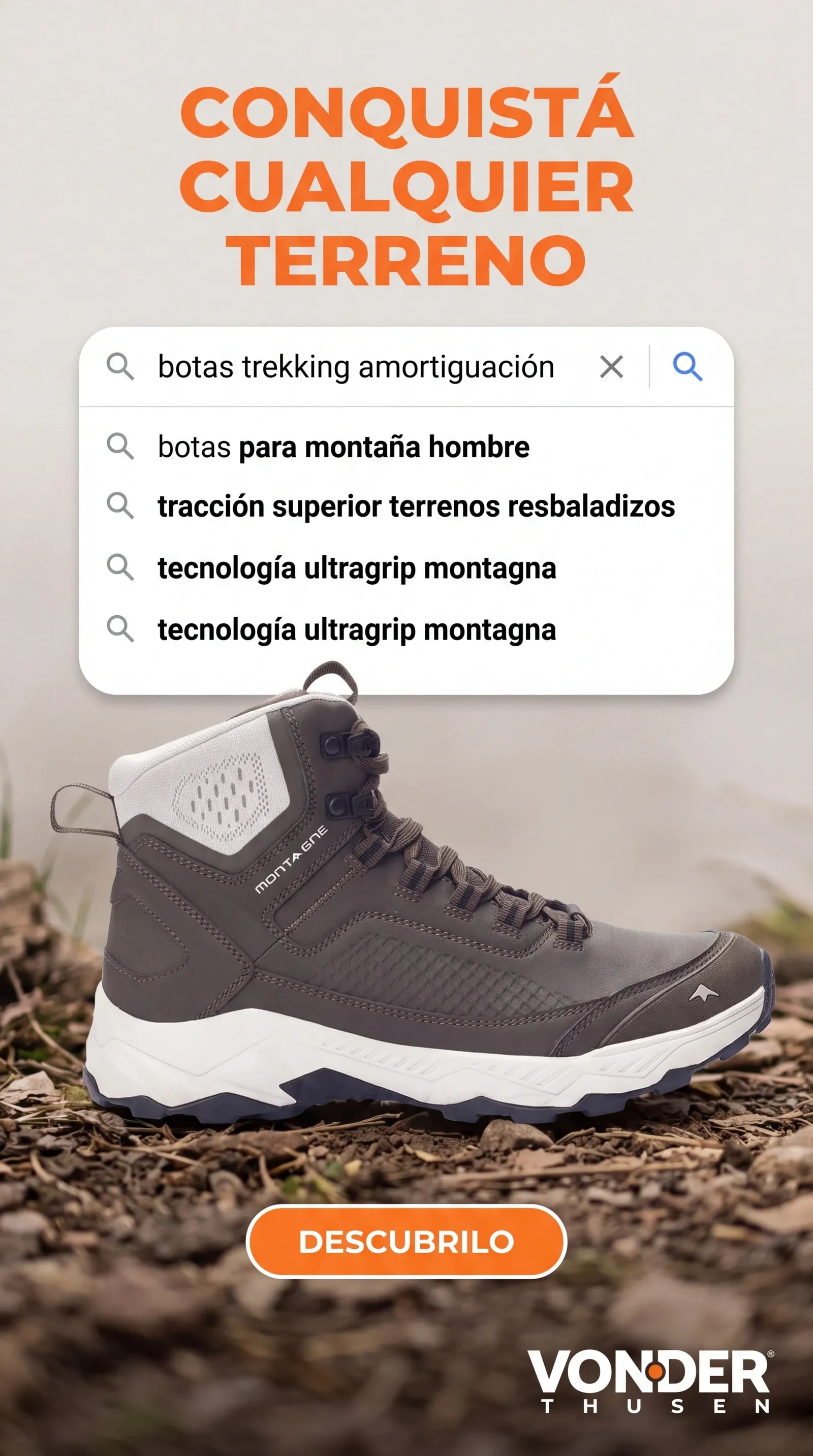
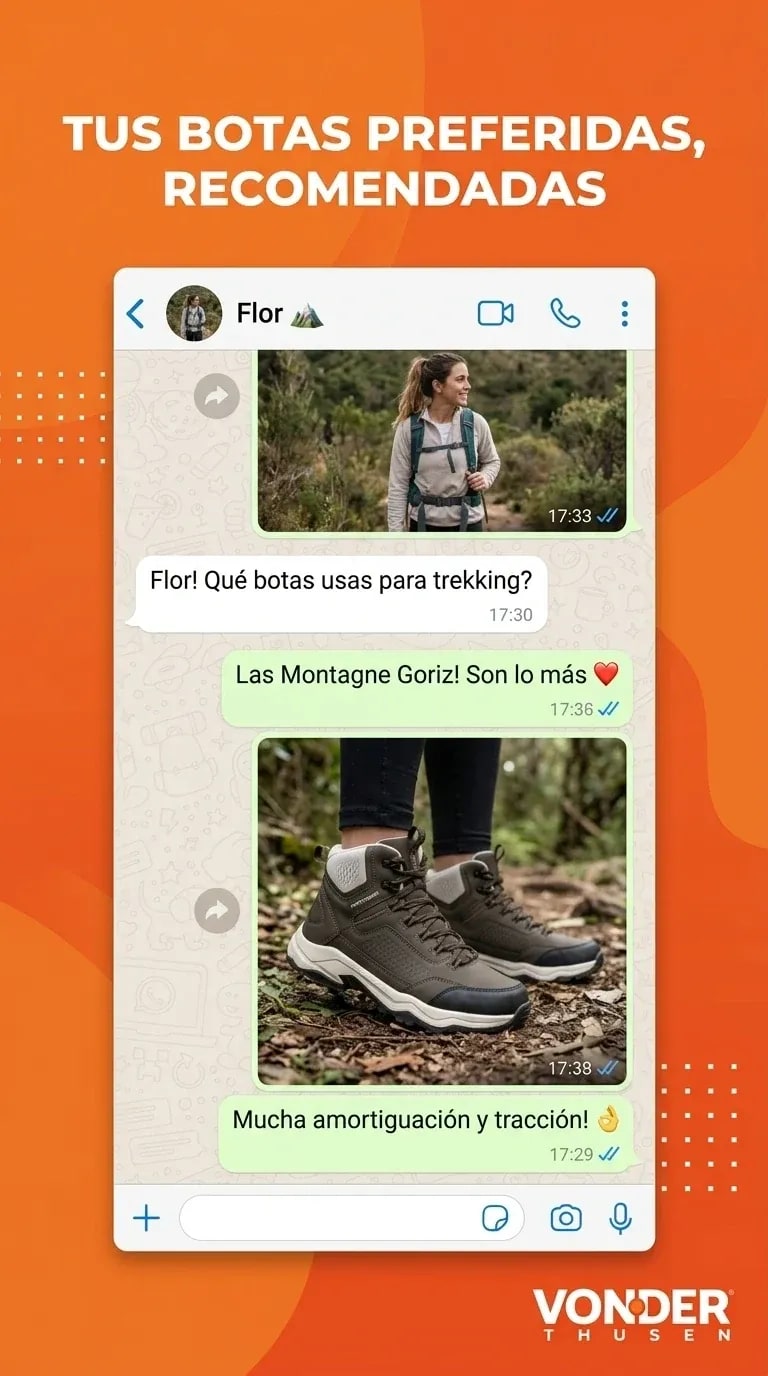
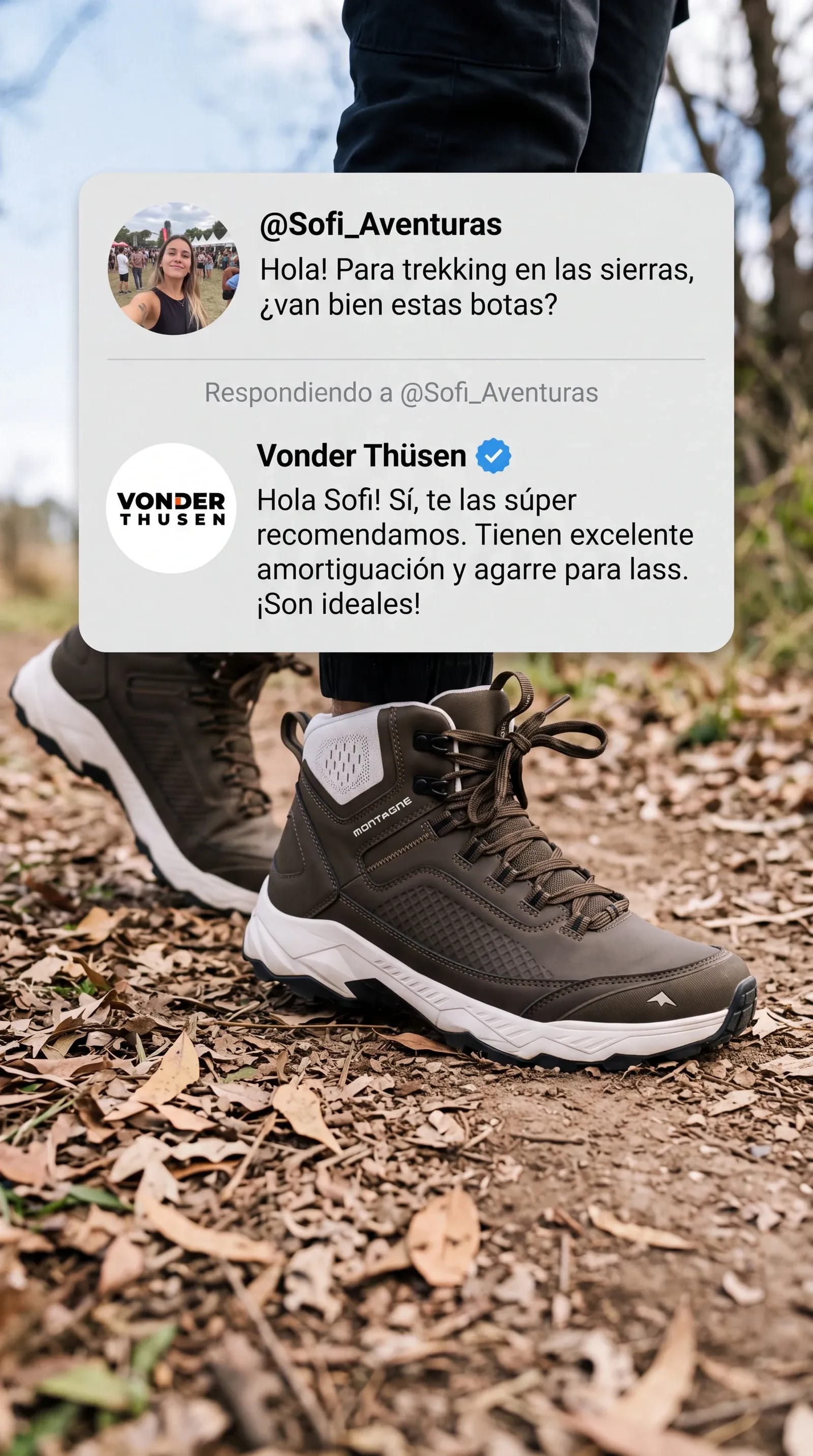
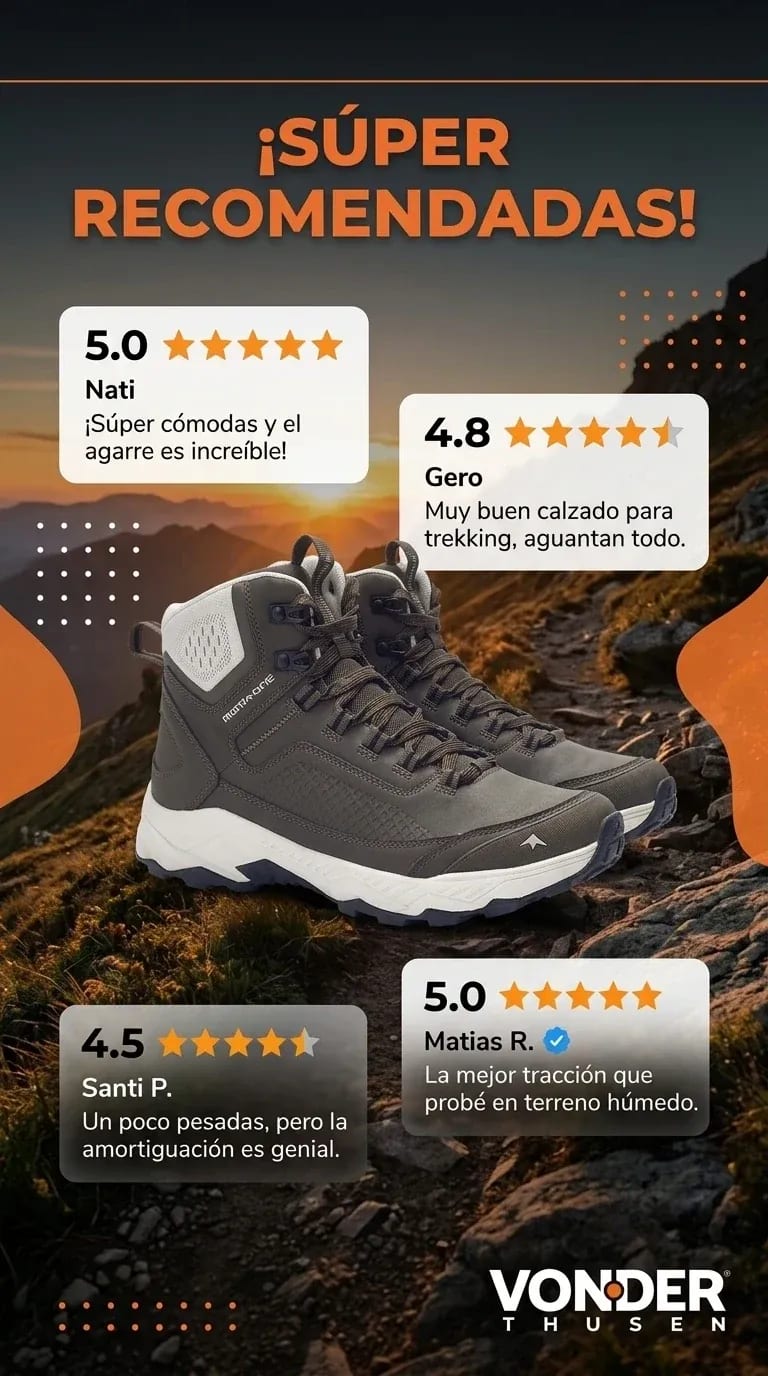
All five work as images for paid advertising and for organic posting too. If you were putting your product ad creatives together by hand, or asking a designer every time you launched something, these formats cover the angles that get used most.
In images, videos and in Ads and Social Media you can now create your own styles and save them.
This was one of the most repeated requests. It is for the seller who already found the combination that works and was typing the same instructions every single time.
You give it a name, pick a base style, write the instructions you kept repeating and save it. After that it shows up as one more style, next to the built-in ones.
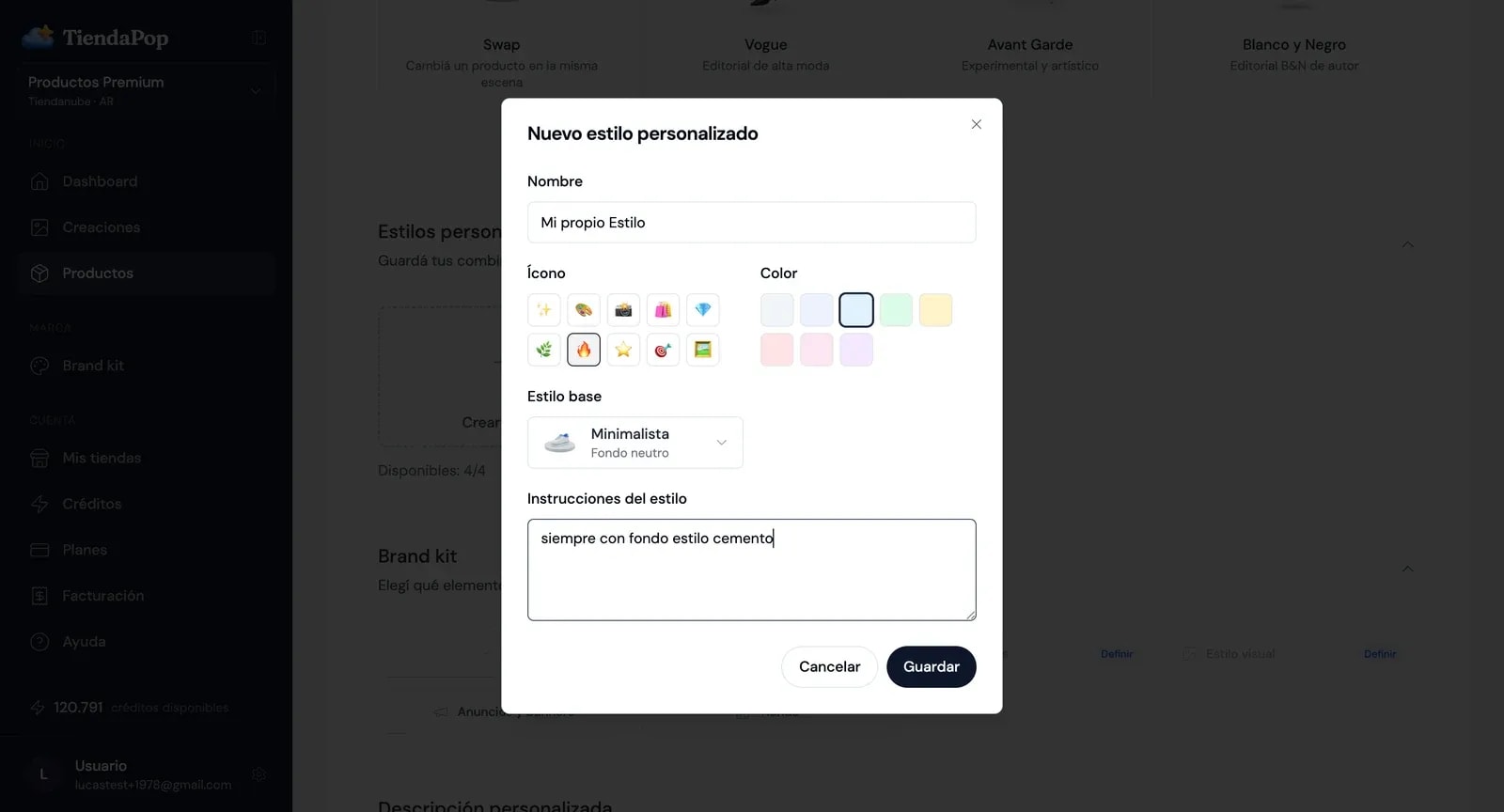
If you were writing the same custom description on every generation, this replaces it: we wrote about how to use the Custom Description.
We also added ten new styles: Vogue, Avant Garde, Black and White, Street Fashion, Runway, Neon Tech, Y2K, Chrome, Glitch and Backstage. The first six lean towards fashion and apparel; Neon Tech, Y2K, Chrome and Glitch work in any category.
Once you have hundreds of generated images, the question stops being how to generate and becomes which one you used. Until now the only way to know was to open your own store and compare.
In the Creations menu, every image you uploaded to your store from TiendaPop now carries a mark on the thumbnail itself.

And if you only want to see those, there is an uploaded to store filter in the same menu. It serves two opposite purposes and both are useful: finding what is already published, or removing the filter to spot what you generated and never used.
| Before | Now | |
|---|---|---|
| Styles per run | One | As many as you select |
| Formats per run | One | As many as you select |
| Same image in several formats | Redo from scratch | Consistent design across formats |
| Changing a result's format | Rescale | Adapt |
| Ad types | By aesthetics | By selling angle |
| Reviewing results | Open one by one | Grid with every variation |
| Custom style | Repeat instructions | Saved and reusable |
| Brand identity | Logo and colours | Adds public name and handle |
| Knowing what you published | Check your store | Mark and filter in Creations |
Four of the five angles generate text: the suggested searches, the chat conversation, the question and answer, the reviews. That text is a starting point, not a final version.
Read it before publishing. Sometimes it comes out perfect and sometimes it needs a tweak, and you are the one who knows your customers and how they talk. In the reviews angle, also check that what it says reflects what your buyers actually think about that product.
Generating four or five variations in the same run helps: you pick the one that came out best instead of settling for the only one you got.
Everything in this post is already available. Go to Products, pick one, and it shows up in the styles, formats and Ads and Social Media sections.
This update came largely from seller messages. People who told us they were generating the same image four times for four formats, or rewriting the same instructions on every run, or losing track of what they had uploaded to their store and what they had not.
If something still slows you down, write to us on WhatsApp. It does not have to be a finished idea: just tell us where your time goes.
You connect your Tiendanube or Nuvemshop store, pick a product and select every style and format you need. A single run generates all the variations: the photo for the product page, the vertical one for stories, the square one for the feed and the ad pieces. There is no need to repeat the process for each format.
Yes. You can select every style you want to try and every format you need, and they are generated together. If you combine three styles with two formats, you get the six variations without repeating the process.
Yes. When generation finishes, results appear in a grid inside the product, each variation in its real proportion: verticals vertical and squares square. You compare styles and formats at a glance and use the magnifier only when you want to see one in detail.
On, TiendaPop generates one design per style and adapts it to each format you selected, so the vertical and the square version are the same piece in two sizes. Off, each format generates an independent image. It appears automatically when you select more than one format.
They are visual pieces generated with AI from a product's photos and data, organised by selling angle: struck-through discount, Google search, messaging chat, reply to comment and reviews. Each one is built around a concrete reason to buy and they are generated in the Ads and Social Media section.
It is not mandatory, but it is strongly recommended. The Public name field and the social handle are used to sign reply to comment ads. If they are empty, the AI fills that data on its own and the piece may go out with a name that is not your brand's.
From the product in your connected store. The struck-through discount style takes the regular price, the promotional price, the instalments and free shipping exactly as they are set, calculates the percentage and shows them on the piece. If the product has no promotion set, there is no discount to show.
Adapt takes an image you already generated and moves it to another format keeping the design. Generating again creates a different image from scratch. If you liked a result and only need the vertical version, Adapt is the way.
In the Creations menu, every image published to your store from TiendaPop carries a mark on the thumbnail, and there is an uploaded to store filter to see only those. Removing the filter shows the opposite: what you generated and never used.
Pick one, select the styles and formats you need, and generate every piece in a single run. Try TiendaPop.
Share article:
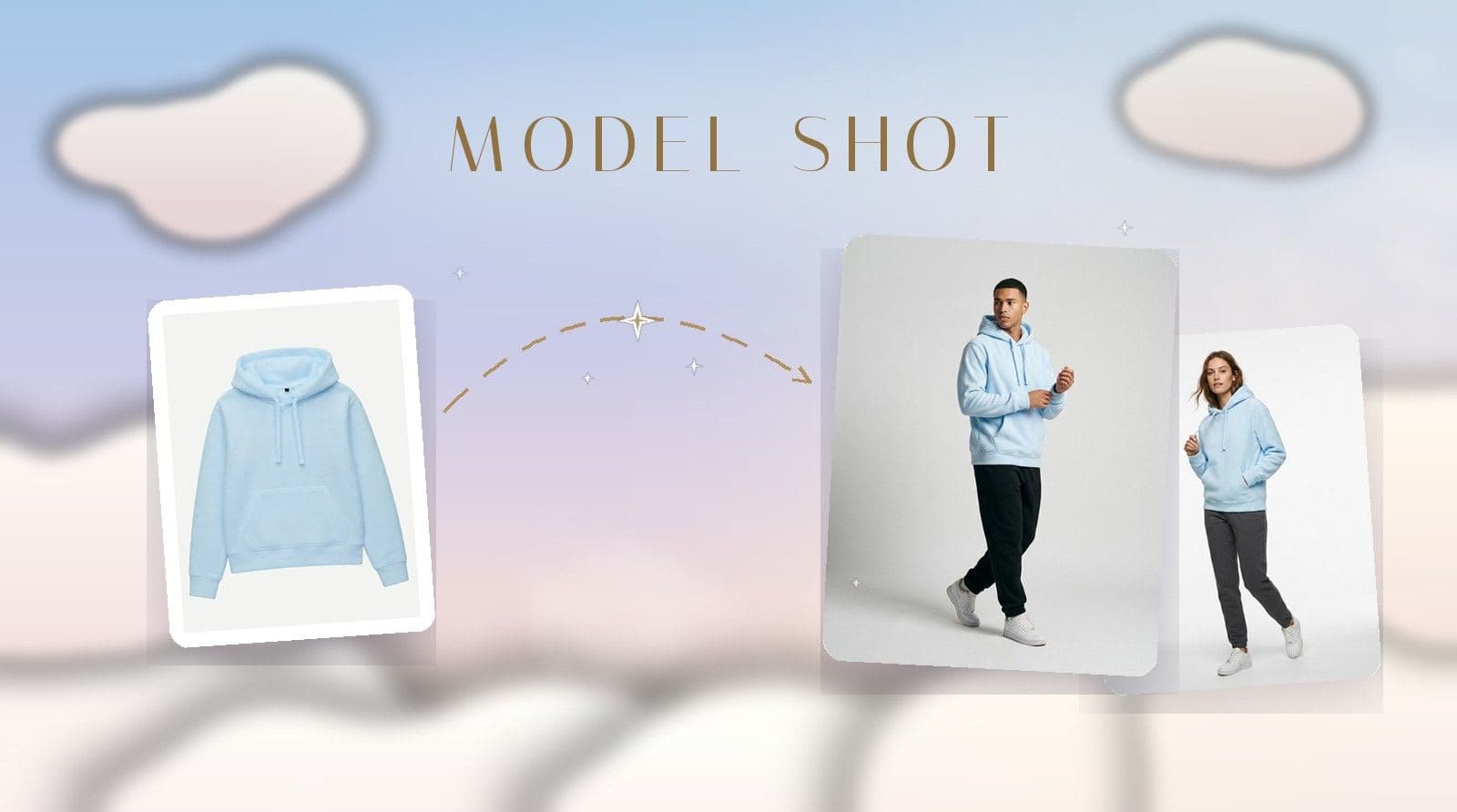
Model Shot is TiendaPop's new style for apparel and accessories: upload the photo of a garment — even a phone photo — and it generates model images with a professional photo studio look.